


How to Self-Check-In and Use Wi-Fi Room Door Locks
Housing Self-Check-In
The majority of residence halls feature digital access to individual rooms (Pollock Halls has some buildings which offer physical metal keys until scheduled renovation)! Instead of physical metal keys, students use their mobile id+ card to gain access to their assigned building and room. An added feature is that students can utilize the Self-Check-In feature in eLiving, eliminating the need to stop at any location to check in. This means a student can check-in on their way to campus and proceed directly to their residence hall's unloading zone.
If any assistance is required, stop by the Commons Desk Operation, which is open 24 hours a day.
Follow these steps to ensure a smooth check-in process.

Schedule Move In
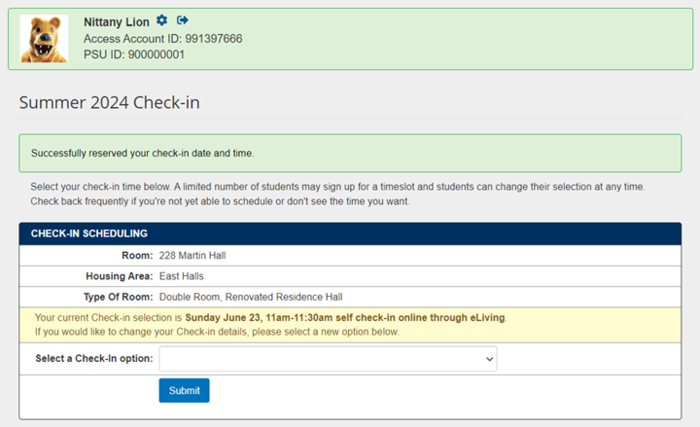
All students must Schedule Move-In in eLiving, which is available only after room assignments are posted. The availability of dates/times is dependent upon the building.
To Schedule Move-In:
- Login to eLiving > My Info > Schedule Move-In
- Select a date/time that works for your schedule. No confirmation will be sent. You can modify your date/time as necessary
- It is recommended that you and your roommate do not move in at the same time to allow for space to unpack
^^^IMPORTANT^^^
You must have a Schedule Move-In time to utilize the self-check-in process.

Move In
Arrive to campus at your Schedule Move-In time. Follow the instructions for navigating to campus to your Unloading Zone, which is based on your room assignment. This location is where you will unload your vehicle and move your items into your residence hall.

Check In
Complete the Check-In through eLiving. This step will activate your residence hall building access, room door access, and download your Campus Meal Plan dining dollars. Using the Check-In feature eliminates the need for you to visit the Commons Desk Operation upon arrival to campus.
To Check In:
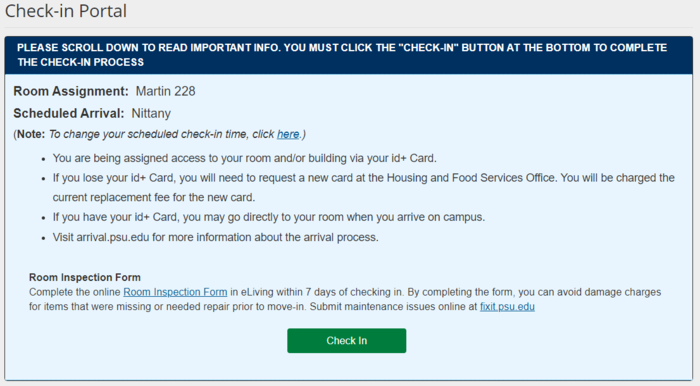
- Login to eLiving > My Info > Check-In
- Review the information
- Click the green "Check-In" button
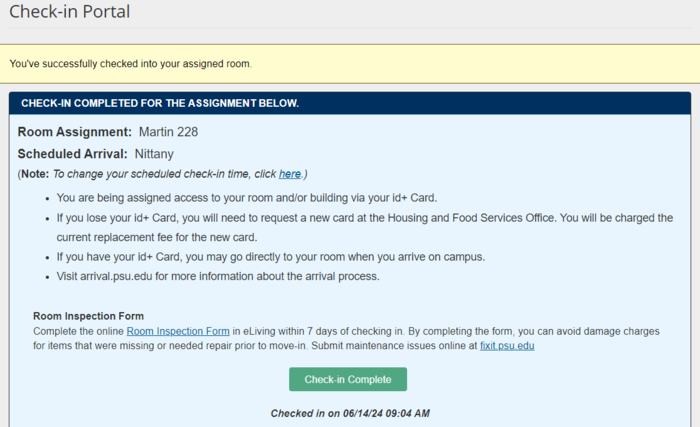
- The screen will update with the message "You've successfully checked into your assigned room"
- A confirmation email is sent to your Penn State Access Account to confirm your check in
After clicking the Check In button, this message should appear:

Accessing Your Residence Hall
Once you have Checked In, your residence hall building and room door clearances will be downloaded in the system.
- Residence Hall buildings are unlocked during official Arrival hours, and then will lock automatically.
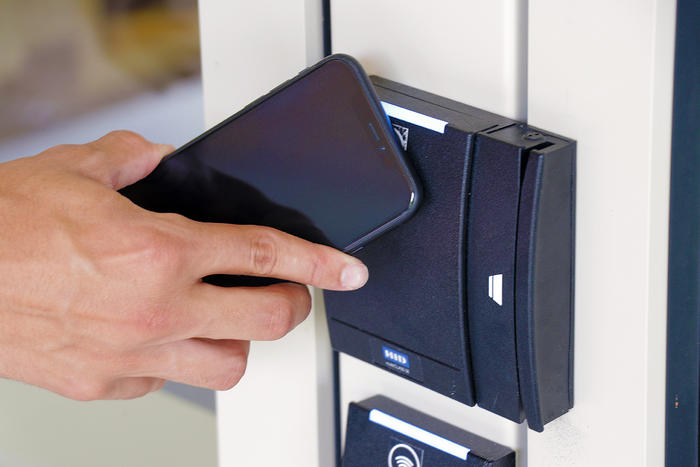
- Once the building is locked, you will tap your phone on the reader near the entry door, which scans your Penn State id+ mobile card.
- Once system confirms you have the correct building clearance, the entry door will unlock. You have 30 seconds to open the door.
- Doors that remain open for a prolonged period of time will alarm. Simply close the door to turn off the alarm.

Accessing Your Residence Hall Room
Each residence hall door is equipped with a keyless locking mechanism with a reader that connects to the server through Wi-Fi. The door will ALWAYS be locked - you will not be able to keep the door unlocked. This means that you need to carry your mobile device with you at all times, even when using the bathroom, so you can reenter the room.
Using the Door Reader

Step 1
Place your mobile device flat against the reader, near the Wi-Fi symbol; the reader light will flash red; remove your mobile device

Step 2
WAIT 30 SECONDS.
The door reader must confirm your credentials with the server and download the information to the door reader. You must wait the entire 30 seconds. If you try to use the reader again before the 30 seconds has passed, the reader will NOT work, and the 30 second clock will reset.

Step 3
Step 3: Place your mobile device flat against the reader, and light will flash green and the door will unlock
Entering Your Room after the first time
After the first time that you perform these steps and enter your room, your credentials are downloaded to door reader. You will not need to wait the 30 seconds on future entries, and can quickly tap the reader to unlock the door.
If you purchase a temporary card, use a loaner lockout card, or activate/deactivate a mobile device, you will need to go through these 3 steps again. The system will need to re-verify your account and download your new credentials to the door reader again.
Assistance
Experiencing issues accessing your room door? Verify this information:
- You are properly checked in to your assigned room through eLiving and received the housing check-in confirmation email.
- Your room assignment matches the building and room door number that you are trying to access.
- You wait the full 30 seconds before presenting your mobile device. If you attempted multiple times but did not wait a full 30 seconds, the system will not have been able to confirm your account.
- Your mobile device may not be activated or is not properly setup. Review How to Enroll New Devices.
If your access does not work, ask for assistance from a Housing or Residence Life staff member, or visit the Commons Desk.
Contact Us
Get Connected Follow Us
Get connected with us on social networks!